Building Modes
More actions
Building Modes in Obby Creator are different modes or ways to build an obby. Only one can be used at a time and there is no limitation to when they can be used and how.

How to select a Building Mode
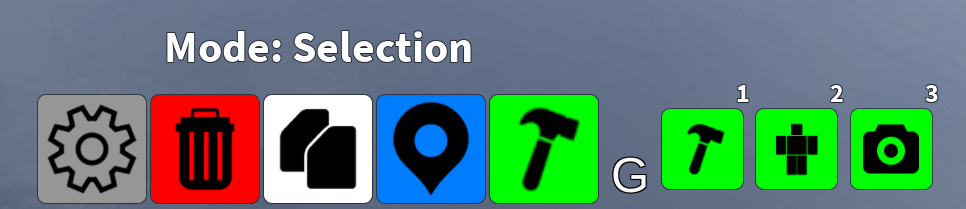
The default building mode is the regular building mode where you can walk around and edit from your character. You can either press the green hammer button at the bottom and then the hammer icon from the menu or press the 1 key directly. The next one, similar to the first is fly mode, press the character icon or the 2 key. The last building mode is the camera mode. You can use your camera freely similar to Roblox Studio. From the same hammer menu click the Camera icon or the 3 key.
Building Modes

Default Building Mode
The default building mode is the classic Obby Creator building experience introduced at launch as the only building mode at the time. You can walk and play your obby while testing it with your regular Roblox avatar. This can be quickly switched to via the green hammer button on the bottom of the screen or by pressing the 1 key.
Flying Building Mode
Similar to the default building mode, you control your avatar regular but you are flying. You can also clip through collide-able objects, also known as noclipping. From the same green hammer menu, click the icon resembling an R6 Roblox character or the 2 key.
Free-cam Building Mode
The last building mode resembles Roblox Studio's building experience and is a freely mobile camera option. Like Roblox Studio, the shift key can be used to slow down in order to do more precise measurements in your obby. You can also use the mouse scroll wheel to zoom the camera. To use the free-cam mode, click the green hammer button in Build Mode at the bottom of your screen, then the Camera button in the menu or by pressing the 3 key.