Parts
More actions
Parts are the fundamental basis of all obbies in Obby Creator. Parts are split into sub-categories: Advanced Parts, Basic Parts, Moving Parts, Cart Rides, Special Parts, and Pre-mades.
Part Fundamentals
At their core, parts are essentially the same thing you could find in Roblox Studio. In Obby Creator, they are customizable in many ways and are the basis of all obbies/creations in Obby Creator.
Advanced Parts
Advanced parts are parts that are more than just shapes and have advanced functionality. A few advanced parts require the advanced tools gamepass, such as the Advanced Tools Part, the Music Part, and the Music Zone. However, the majority remain free, only costing in-game dollars and not Robux.
Building with Parts
Adding a Part to your Obby

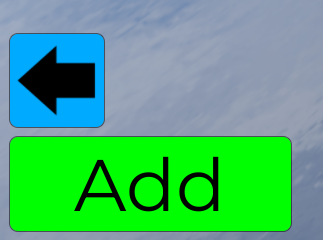
In Obby Creator, all it takes to add a part (as mentioned above), is to join the game, walk over to a plot, claim it and load your desired obby, then choose to edit it. Next, click the 'Add' button on the bottom left corner. This will bring up a menu of all the available parts in the game and allow you to insert any of them. Clicking it will also bring up its price at the bottom of your screen. Any part can be moved around before being placed and can be configured, resized, and otherwise modified after the part is placed.
Each part costs an amount of money depending on its type and complexity. When modifying parts, the bigger you make one the more it costs.
Editing a Part
To edit a part, start by clicking it. This will bring up a Properties menu on the right of your screen (which may need to be maximized from its arrow button). From here, you can select, view, and edit each individual property available with your part based on its type. The first tab houses the properties like Appearance, Data, Effects, Behavior, etc., for your part only. The second, is for more advanced modifications to your entire obby and can be accessed at any time despite selecting a part or not.
Also while selecting a part, you can edit its position and size with the tools at the bottom of the screen. Parts can be re-sized, rotated, moved, dragged, copied and duplicated, or even deleted directly. You can press the CTRL key when adding a part to quickly get to the move tool.
Selling a Part

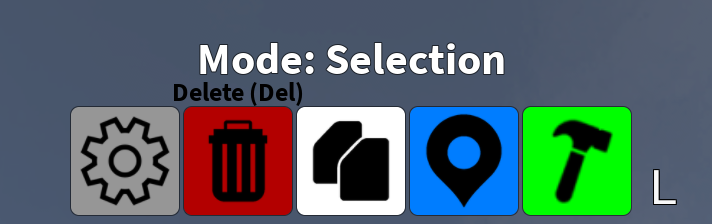
Since parts cost money to create and get more expensive the bigger you want them, selling them can become a necessity. To sell a part, follow the same process as deleting it. Start by selecting it, this can be done by clicking or tapping its area. Then, at the bottom of the screen, click the delete button. By deleting a part, you will gain around 75% of its initial cost and value back, although this may vary depending on cost and rounding. You can undo selling/deleting a part via the undo button in the top right corner of the screen.
Pre-mades
Pre-mades are not individual parts but rather a collection, group, or model of parts. You can use these to quickly create a re-useable group of parts of any type to speed up the creation of your obby.
All Parts
For a list of all parts, see the dedicated Parts category, or use the navigation plate below.